Creating Kanzi Studio command plugins
Kanzi Studio plugins extend the functionality of Kanzi Studio and run in Kanzi Studio. Use a Kanzi Studio plugin to:
- Automate tasks in Kanzi Studio. For example, to automate tasks that take a lot of time when you do them manually, or the task is prone to errors.
- Import and export content from Kanzi Studio. For example, to import or export localization tables in a format not supported by Kanzi Studio.
- Create editors that abstract the details and speed up the workflow. For example, to visualize the connections between nodes and resources used in your Kanzi Studio project.
Kanzi Studio plugin interface is provided as .NET framework assembly. You can find it in <KanziInstallation>/Studio/Bin/PluginInterface.dll. The plugin interface provides access to data and commands in Kanzi Studio. To develop a Kanzi Studio plugin:
- Create the base for a Kanzi Studio plugin. See Creating the base for a Kanzi Studio command plugin.
- Build and run your Kanzi Studio plugin. See Building and running a Kanzi Studio plugin.
- Debug your Kanzi Studio plugin. See Debugging a Kanzi Studio plugin.
- Add functionality to your Kanzi Studio plugin. See Adding functionality to your Kanzi Studio command plugin.
Creating the base for a Kanzi Studio command plugin
Kanzi Studio command plugins are plugins that you execute as a single command and do not have a user interface. For example, use the command plugins to execute a command on the entire or the selected part of the scene graph in your project.
Here you create the base for a Kanzi Studio command plugin where you then add functionality that extends the functionality of Kanzi Studio.
To create a Kanzi Studio command plugin:
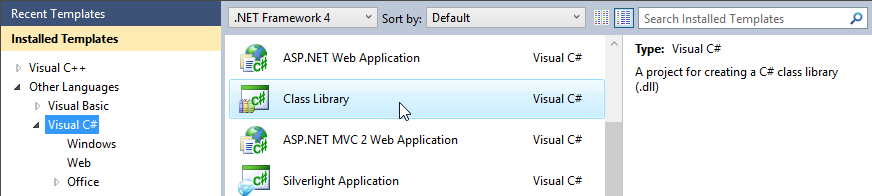
- In Visual Studio select File > New > Project and create a Visual C# Class Library.
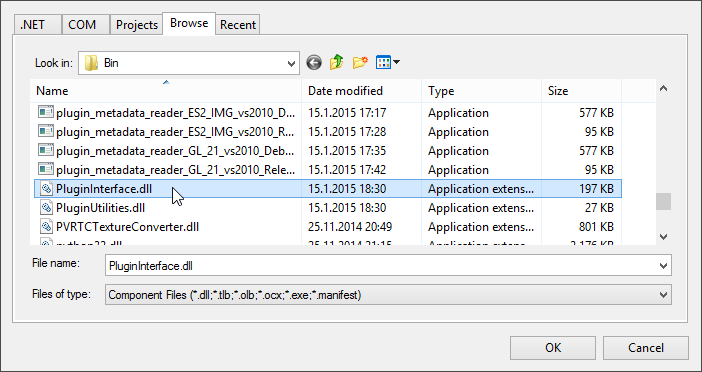
- In the Solution Explorer right-click the project name, select Add Reference, and add references to files:
- Select the .NET tab, and add the reference to:
System.ComponentModel.Composition. - Select the Browse tab, and add the reference to the <KanziInstallation>/Studio/Bin/PluginInterface.dll file.
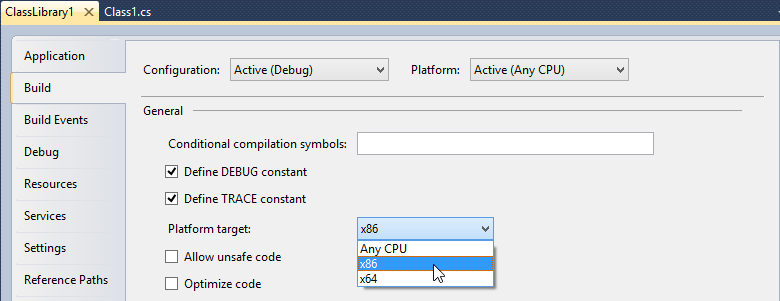
- In the Solution Explorer right-click the project name, select Properties and in the project properties Build tab set the Platform target to x86.
-
Open the
Class1.cs file and add the using directive for the System.ComponentModel.Composition and the Kanzi Studio plugin interface:
using System.ComponentModel.Composition;
using Rightware.Kanzi.Studio.PluginInterface;
- Before the definition of the command class where you implement the
PluginCommand interface, use the export attribute to tell Kanzi Studio that the .dll is a plugin. In this example, you implement the plugin in the Class1 class.
[Export(typeof(PluginContent))]
- Set the
Class1 class to implement the PluginCommand interface, which you implement in the Class1 class. Kanzi uses this class to create the plugin.- Change
public class Class1
to
public class Class1 : PluginCommand
- Right-click
PluginCommand and select Implement Interface.
-
In all functions replace this line with the code you want to execute:
throw new NotImplementedException();
Make sure that your plugin handles all its internal exceptions and does not let them reach the Kanzi Studio interface.
For example, set the functions in the Class1 class to:-
Use the
CanExecute function to set whether users can launch your plugin, and where they can launch your plugin:
- When set to
false, Kanzi Studio shows the plugin in the main menu and the context menu, but users cannot launch the plugin. - When set to
true, users can launch the plugin.
For example, use this to enable the command only when a Kanzi Studio project is open
return this.studio != null && this.studio.Project != null;
-
Use the
CommandPlacement function to set the menu name of the plugin, and where you want to show the command to launch the plugin:
- To show the plugin in the main menu use
ContextMenuPlacement.NONE. - To show the plugin in the context menus invoked from nodes and resources, and the main menu use
ContextMenuPlacement.PROJECT_ITEM.
get
{
	return new CommandPlacement("myPluginMenu", ContextMenuPlacement.NONE, false, null);
} -
Use the
Description function to set a brief description of what your Kanzi Studio plugin does. Kanzi Studio shows this description as a tooltip when a user hovers the mouse pointer over the plugin name in the menu.
get
{
	return "A tooltip with short description of what the plugin does.";
} -
Use the
DisplayName function to show the plugin name in the Kanzi Studio menu where you can launch the plugin.
get
{
	return "Plugin display name";
} -
Use the
Initialize function to place studio to a member variable.
Kanzi Studio provides KanziStudio object to plugins and is the root object for data access. KanziStudio object provides the current project, available commands, global undo and redo, events related to project opening and closing.
private KanziStudio studio;
public void Initialize(KanziStudio studio)
{
	this.studio = studio;
} -
Use the
Name function to set the internal name of your plugin. Kanzi uses the internal name of the plugin so that you can change the display name of your plugin without additional changes to the plugin.
get
{
	return "Internal plugin name";
} - Add to the
Execute function the code you want your plugin to run.
For example, use this to print Hello world! to the Log window in Kanzi Studio when you run your plugin.
studio.Log("Hello world!");
- Build and run the plugin. See Building and running a Kanzi Studio plugin.
Here you created just the base structure for your Kanzi Studio plugin, which only prints a message to the Kanzi Studio Log window. To make your plugin do more than that, add the code that you want your plugin to run to the Execute function. See Adding functionality to your Kanzi Studio command plugin.
Building and running a Kanzi Studio plugin
To build and run a Kanzi Studio plugin:
- In Visual Studio select Build > Build Solution to build the plugin .dll.

-
Copy the Kanzi Studio plugin .dll to the %ProgramData%\Rightware\<KanziVersion>\plugins directory.
If the plugins directory does not exist in %ProgramData%\Rightware\<KanziVersion>, create it.
- Open Kanzi Studio. If Kanzi Studio is already running select > > Reload Kanzi Studio Plugins to load all newly added plugins and to apply the changes made to the plugins.
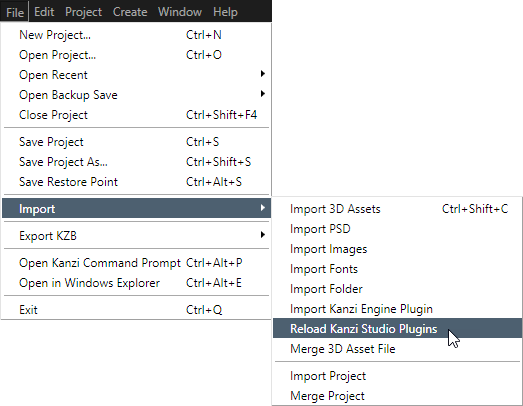
Kanzi Studio loads the plugins and adds them to either the main menu or the context menus invoked from nodes and resources.
- In Kanzi Studio select the plugin main menu and select the plugin, or right-click a node in the Project and select the name of your plugin to run your plugin.
Debugging a Kanzi Studio plugin
To debug a Kanzi Studio plugin:
- In Visual Studio create and build your Kanzi Studio plugin. See Creating the base for a Kanzi Studio command plugin.
- In Windows Explorer create a shortcut from your Kanzi Studio plugin .dll and move the shortcut to the %ProgramData%\Rightware\<KanziVersion>\plugins.
By default Visual Studio builds the .dll of your plugin in C:\Users\<UserName>\Documents\Visual Studio 2010\Projects\<ProjectName>\<ClassLibraryName>\bin\Debug or Release directory.
- In Visual Studio add the break points where you want to debug your plugin.
- In Visual Studio select Debug > Attach to Process ..., in the Available Processes select KanziStudio.exe and click Attach.
- In Kanzi Studio if you have the plugin open, close it, select > > Reload Kanzi Studio Plugins to apply the changes you made to the plugin, and run the plugin.
Adding functionality to your Kanzi Studio command plugin
Here you can find an example of a Kanzi Studio plugin. This plugin deletes all Empty Node nodes that do not have child nodes.
To delete Empty Node nodes without child nodes using a Kanzi Studio plugin:
- Create the base for your Kanzi Studio command plugin. See Creating the base for a Kanzi Studio command plugin.
- In Visual Studio open the Visual Studio solution of your plugin and for open the class library file that implements the
PluginCommand interface.
- In the
Execute function write the code that your plugin executes when you invoke the plugin command.
For example, to create a plugin that deletes all Empty Node nodes that do not have child nodes, add to Execute function:
// Plugin executes the content of this function. Place your plugin code here.
public void Execute(PluginCommandParameter parameter)
{
	var items = parameter.Items;
	// Print to the Kanzi Studio Log window.
	studio.Log("Deleting all Empty Node nodes without child nodes");

	// When executing from the main menu, items passes empty value as a parameter.
	// When executing from the context menu, items passes the selected items as a parameter
	// (even when multiple items are selected).
	if (items != null && items.Any())
	{
		// If executed from the context menu, start the function that traverses
		// the scene graph from the node where it is executed.
		TraverseTree(items);
	}
	else
	{
		// Check that a project is opened.
		if (studio != null && studio.Project != null && studio.Project.Screen != null)
		{
			// If executed from the main menu, starts the function that traverses
			// the scene graph from the first child of the Screen node.
			TraverseTree(studio.Project.Screen.Children);
		}
	}
}
// TraverseTree function traverses the scene graph from the node where you launch the plugin.
private void TraverseTree(IEnumerable<ProjectItem> items)
{
	foreach (var item in items.ToArray())
	{
		// If the node is an Empty Node 2D or Empty Node 3D and does not have
		// any child nodes, delete it.
		if ((item is EmptyLayer || item is EmptyNode) && !item.Children.Any())
		{
			// Delete the project item using a command. This enables you
			// to undo the action performed by the plugin.
			studio.Commands.DeleteProjectItem(new ProjectItem[] { item });
		}
		// Traverse the children of the current node.
		else if (item.Children.Any())
		{
			TraverseTree(item.Children);
		}
	}
}
- In the
CanExecute function set where and how you can launch the plugin in Kanzi Studio.
public bool CanExecute(PluginCommandParameter parameter)
{
	// Allow launching of the plugin only when a single node in the scene graph is selected.
	// Zero items are called when executing the plugin from the main menu, which sets the
	// plugin to start traversing the scene graph from the first child node of the Screen node.
	var items = parameter.Items;
	return items != null && items.Count() <= 1;
}
- In Kanzi Studio create a project that includes several Empty Node nodes, some that have child nodes, and some without child nodes.
- Build and run the plugin. See Building and running a Kanzi Studio plugin.
The plugin removes the Empty Node nodes that do not contain any child nodes.
See also
Installing Kanzi Studio plugins
Kanzi Studio plugins

Open topic with navigation